
QuickBooks Online Bank Feed Automation and Reconciliation
A practical, disciplined walkthrough of connecting bank feeds, building trustworthy categorization rules, running a genuine month-end reconciliation, and diagnosing the specific causes when an account refuses to balance.
Quick Summary
- Configuring Bank Feed Connections — securely linking a business bank account to QuickBooks Online so transactions flow in automatically instead of being entered by hand.
- Creating Custom Bank Rules for Auto-Categorization — teaching QuickBooks to recognize recurring transactions and categorize them correctly without manual review.
- The Month-End Reconciliation Process — matching QuickBooks’ record of every transaction against the bank’s own statement to confirm the books are accurate.
- Troubleshooting Unbalanced Accounts — finding and fixing the specific cause when a reconciliation won’t balance, rather than forcing it closed.
Scope & Objective
Bank feeds are the single biggest time-saver QuickBooks Online offers a growing business — but only when they are configured correctly and reviewed with discipline. Left on autopilot without rules, a bank feed just becomes a queue of unreviewed transactions; left with careless rules, it silently miscategorizes expenses in a way that quietly corrupts every report built on top of it. This guide covers how to set up bank feeds properly, build rules that are safe to trust, close out each month with a real reconciliation, and diagnose the handful of specific issues that cause a reconciliation to not balance.
- Connecting a bank or credit card account to QuickBooks Online via a secure bank feed, and understanding what that connection does and does not do automatically.
- Building bank rules that correctly and consistently categorize recurring transactions, including when to let a rule auto-add a transaction versus when it should only suggest one.
- Running a genuine month-end reconciliation against the bank statement, not just accepting whatever the feed already categorized.
- Diagnosing an unbalanced reconciliation using QuickBooks’ own tools rather than forcing a difference through a plug entry.
Who this guide is for: a business owner or bookkeeper who has already connected at least one account to QuickBooks Online and wants to move from ad hoc, manual categorization to a disciplined monthly close process, or anyone who has hit a reconciliation that refuses to balance and needs a structured way to find the actual cause.

Configuring Bank Feed Connections
A bank feed connection pulls transaction data directly from your bank or credit card company into the Banking (or Transactions) center in QuickBooks Online, usually once a day. Setting this up correctly the first time avoids most of the categorization problems that show up later:
- Connect the account, not just a card. Link the actual bank account or credit card account the transactions post to, and make sure it is matched to the correct account already existing in your Chart of Accounts — connecting to a newly auto-created duplicate account is one of the most common setup mistakes and creates a second, disconnected set of records.
- Set the correct start date. Most banks allow pulling 90 days of history on first connection; pulling further back than your books are already reconciled to creates a range of transactions that will need to be matched against existing manual entries rather than added fresh.
- Review the first batch before automating anything. The first weeks of a new feed should be reviewed and categorized manually, one at a time — this is what gives you the real transaction patterns to build accurate rules from, rather than guessing at rules in advance.
- Reconnect promptly when a feed disconnects. Banks periodically require re-authentication; a feed that silently stops updating for weeks creates a backlog that is far more time-consuming to review than staying current.
Why this matters: everything downstream — rules, reconciliation, reporting — depends on the feed pulling complete, correctly-mapped transaction data from day one. A feed connected to the wrong account, or with a gap in its date range, produces books that look complete but are quietly missing transactions no report will flag on its own.
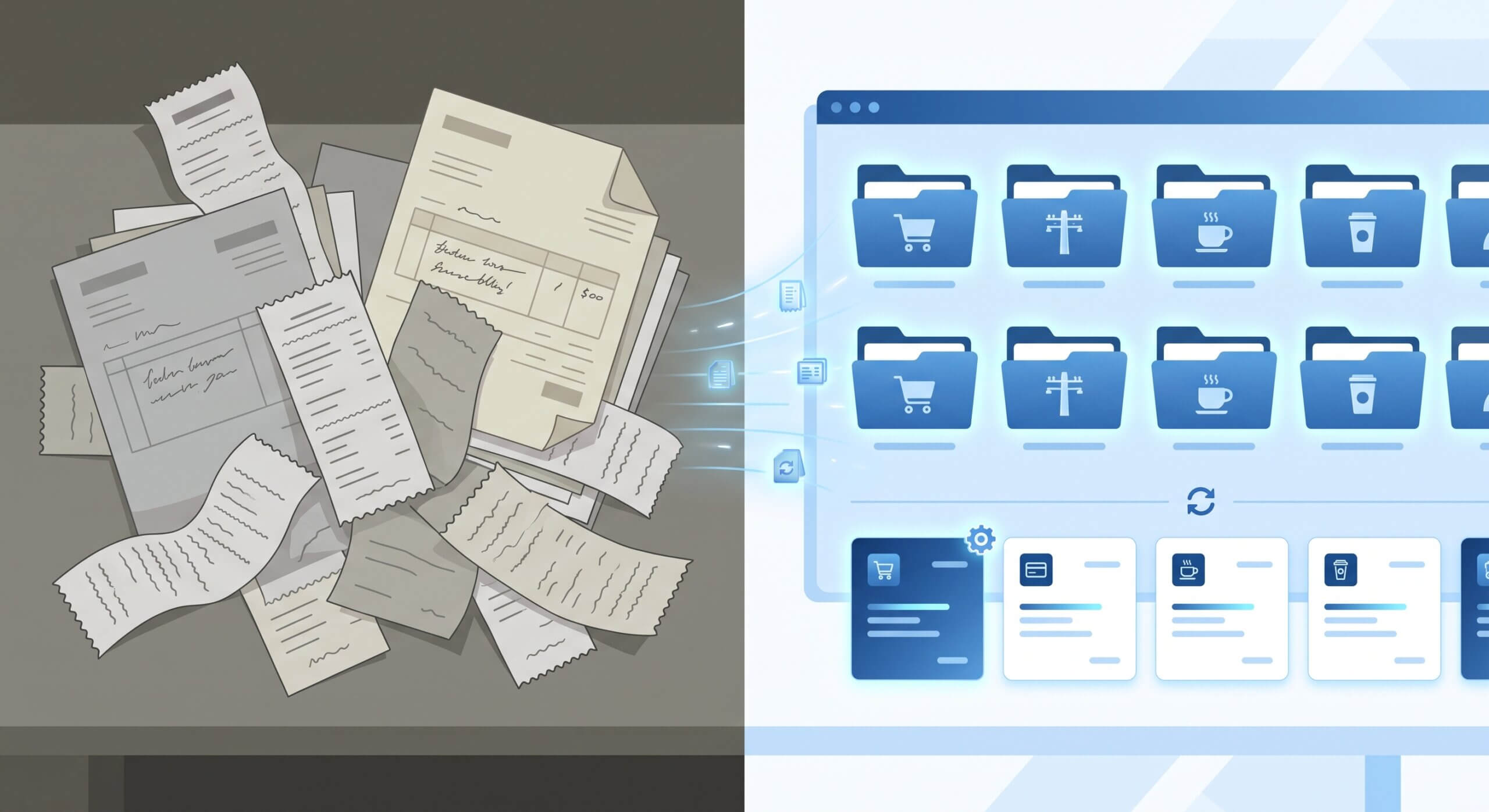
Creating Custom Bank Rules for Auto-Categorization
A bank rule tells QuickBooks how to categorize a transaction automatically based on conditions you define — the payee name, the amount, the transaction type, or text in the bank’s own description. Used well, rules turn hours of manual categorization into a few minutes of periodic review:
- Start narrow, then widen. Build a rule around the most specific, most recognizable part of a recurring transaction (an exact payee name is safer than a partial keyword match), and only broaden its conditions once you’ve confirmed it isn’t catching transactions it shouldn’t.
- Assign the correct account and, where relevant, class or customer. A rule should replicate everything a correct manual entry would set — not just the expense account, but any class, location, or customer tagging your reporting depends on.
- Order matters when rules could overlap. QuickBooks applies bank rules in the order they’re listed; a broad rule sitting above a more specific one for the same payee will catch transactions the specific rule was meant to handle.
- Review, don’t just trust. Periodically re-open the Banking center’s “Categorized” tab and spot-check what your rules have been doing — a rule that was correct when written can start misfiring after a vendor changes its statement descriptor.
Use the “Auto-add” setting deliberately, not by default. A rule set to auto-add posts the transaction straight to the ledger with zero review — appropriate for a handful of completely predictable, fixed-amount transactions (a monthly software subscription, a fixed loan payment), but risky for anything with variable amounts or an occasional exception (a vendor you also sometimes use for a different purpose). For everything else, leave the rule set to “categorize but require review,” so it still speeds up your workflow while keeping a human check in the loop before anything posts.
A common source of downstream errors is a rule built too broadly from a single example transaction — a keyword match intended to catch one recurring vendor can accidentally also catch an unrelated one-off payment that happens to share the same word in its description, silently miscategorizing it unless it’s caught in review.
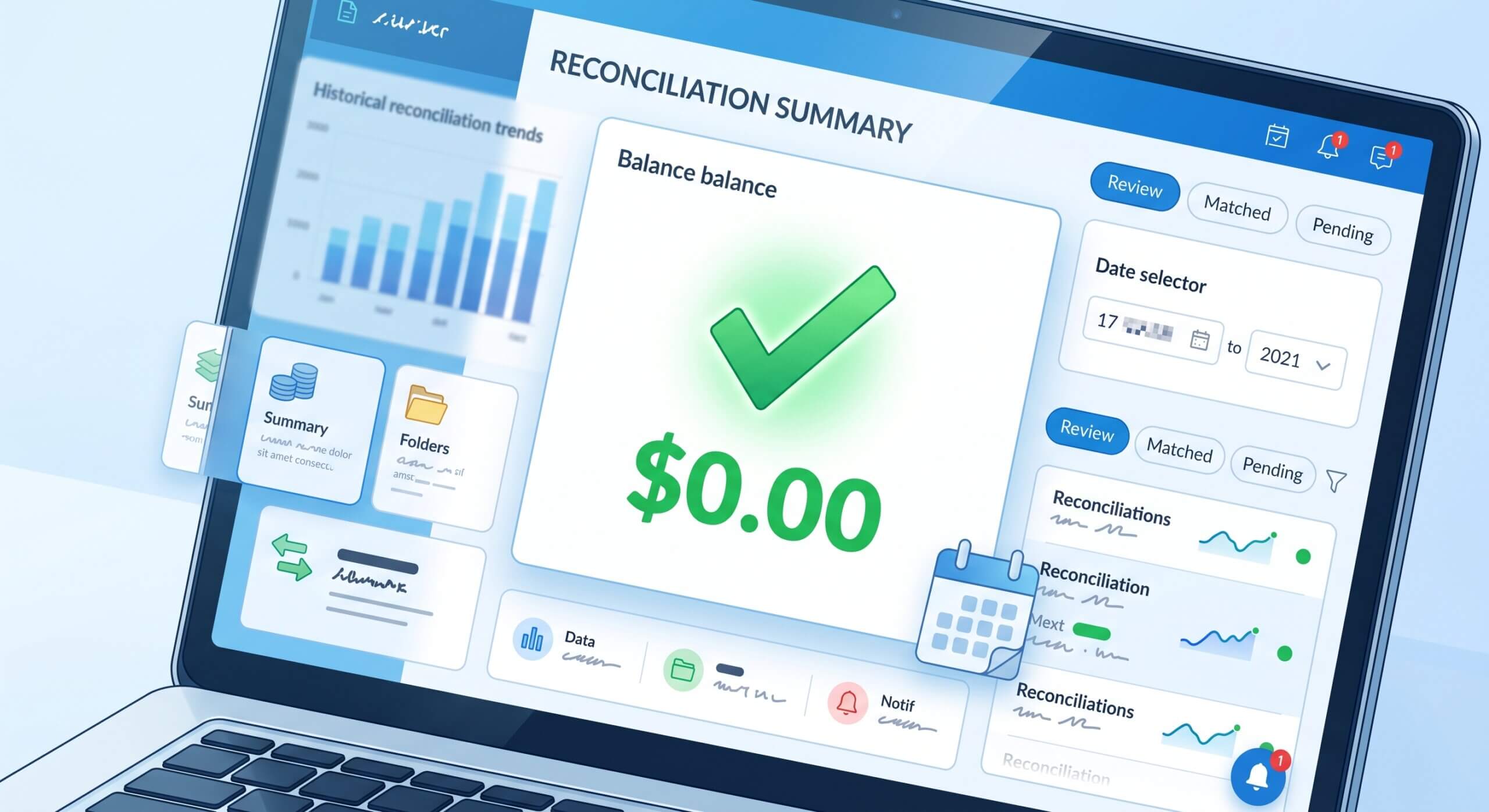
The Month-End Reconciliation Process
Reconciliation is the step that actually confirms your books are correct — not just that transactions have been categorized, but that every transaction the bank shows has been recorded in QuickBooks exactly once, and nothing has been recorded that the bank doesn’t show:
- Gather the real bank statement first. Reconcile against the bank’s own statement for the period, not against the Banking center feed — the feed can contain pending transactions or timing differences the statement won’t.
- Enter the statement’s ending balance and date into QuickBooks’ Reconcile tool exactly as shown on the statement.
- Match every line, don’t skip ahead. Go through each transaction QuickBooks lists and check it off only when it genuinely matches a line on the bank statement — the same date, the same amount, the same direction.
- Investigate before you finish, not after. A reconciliation should only be marked complete when the difference shown is exactly zero; anything else means at least one transaction is missing, duplicated, or entered for the wrong amount somewhere in the period.
Why this matters: categorization tells you what a transaction was for; reconciliation tells you whether your books actually match reality. A business can have perfectly categorized transactions and still have materially wrong books if a duplicate entry or a missing transaction has never been caught — reconciliation is the only step that would surface either.
Troubleshooting Unbalanced Accounts
When a reconciliation won’t balance, the difference has a specific, findable cause — it should be diagnosed, not forced closed with an adjusting entry that just hides the real problem:
- Check for duplicate transactions first. The single most common cause is a transaction entered manually and then imported again through the bank feed (or matched incorrectly), effectively recording it twice.
- Compare the difference amount to individual transactions. If the reconciliation is off by an amount that matches (or is a multiple of) a specific transaction, that transaction is very likely the missing or duplicated one.
- Check for transactions dated outside the statement period. A transaction entered with the wrong date can fall just outside the range being reconciled, making it look like it’s missing when it’s actually just misdated.
- Use the “Find Match” and reconciliation report tools rather than scrolling manually — QuickBooks’ own discrepancy report lists any transaction that has been changed or deleted since a previous reconciliation, which is often the actual root cause of a books-vs-bank mismatch discovered months later.
- Never use a generic adjusting entry to force a balance unless the discrepancy has genuinely been isolated to an amount too small to be worth further investigation (and even then, document what it was) — a forced adjustment on an unexplained difference just moves the error into an equity or expense account where it becomes much harder to find later.
Treat an unbalanced reconciliation as a diagnostic exercise with a real, findable answer: in the overwhelming majority of cases the cause is a duplicate, a missing transaction, or a wrong date — not a mysterious bank error.
Common Bank Feed & Reconciliation Mistakes
- Auto-adding rules that were never reviewed after being written. A rule that was correct on day one can start miscategorizing transactions months later if a vendor changes its statement descriptor or billing amount, and an auto-add rule posts those errors with no review to catch them.
- Reconciling against the Banking center feed instead of the actual bank statement. The feed can include pending or not-yet-posted transactions that the statement won’t show, producing a “reconciled” balance that doesn’t actually match the bank.
- Letting reconciliation lapse for multiple months. Discrepancies compound and become far harder to isolate the longer they go unreconciled — a monthly cadence keeps each reconciliation small and its errors easy to trace.
- Forcing a reconciliation closed with a plug entry. This clears the immediate discrepancy but leaves the underlying error — a duplicate, a missing transaction, a wrong amount — permanently unresolved in the books.
- Deleting and re-entering transactions instead of editing them. This breaks the link a previously-reconciled transaction had to its reconciliation, and can silently reopen a period that was already closed and confirmed correct.
Most of these mistakes come from treating bank feed automation as a replacement for review rather than a tool that still needs one. A disciplined monthly reconciliation, built on rules that are periodically re-checked, is what keeps QuickBooks Online’s automation actually trustworthy instead of just fast.
Are Messy Software Files Slowing Down Your Business?
Let our certified bookkeeping team clean up your accounts. We configure your bank feeds, build safe categorization rules, and keep every month reconciled and audit-ready.